Someone Is Trying to Access Your Server: How to Find and Block a Suspicious IP
Your website is working. Your server is online. CPU and RAM look normal. Then you notice something unusual:
Multiple failed SSH login attempts. Maybe one attempt is nothing. But what if you see dozens of attempts from the same IP address? Now you have a different problem. Someone may be repeatedly trying to access your server. The good news is that you don't have to guess what is happening. With the right monitoring and a few simple Linux commands, you can investigate the activity and take action.
What Is an IP Address?
An IP address is like an address used to identify a device or network communicating with your server. When someone connects to your server, their activity may leave information in different server logs. This can help you understand where a suspicious request or login attempt came from. For example, an SSH login attempt may appear in your authentication log like this:
Failed password for invalid user admin from 203.0.113.45
The important part is:
203.0.113.45This is the source IP address shown in the example. But suspicious activity is not limited to SSH login attempts. Someone could also be sending requests to your website looking for sensitive or commonly exposed files, such as:
- .env
- configuration files
- backup files
- database-related files
- admin login pages
- exposed server or application files
For example, a web server access log might contain a request similar to:
203.0.113.45 - - "GET /.env HTTP/1.1" 404Here, the IP address is again:
203.0.113.45And the request shows that the source attempted to access:
/.envA 404 response means the file was not found at that location. It does not automatically mean the server was compromised. However, repeated requests for .env, backup files, admin paths, or other sensitive resources can be a useful security signal that deserves investigation.
This is why looking only at failed SSH logins is not enough. You should also pay attention to web server logs, application logs, firewall events, file changes, unexpected processes, and other security signals when investigating suspicious activity. With the IP address and the surrounding log information, you have a starting point for understanding what was attempted, when it happened, and which part of your server was targeted.
How Do You Find Which IP Is Trying to Log In Or Access Secure data?
If you have SSH access to your Linux server, you can inspect authentication logs directly. On Ubuntu and Debian systems, one useful command is:
sudo grep "Failed password" /var/log/auth.logThis shows failed SSH password attempts recorded in the authentication log. To see the source IP addresses more clearly:
sudo grep "Failed password" /var/log/auth.log | grep -oE '([0-9]{1,3}\.){3}[0-9]{1,3}' | sort | uniq -c | sort -nrThis can help you identify IP addresses that appear repeatedly. For example, you might see:
35 203.0.113.45
12 198.51.100.27
4 192.0.2.18
Now you have a starting point for investigating which IP addresses are repeatedly attempting to log in.
Let InfraCaptain AI Help You Investigate
Manually searching server logs works, but it can take time to understand what happened and whether the activity is actually suspicious. This is where InfraCaptain AI can help.
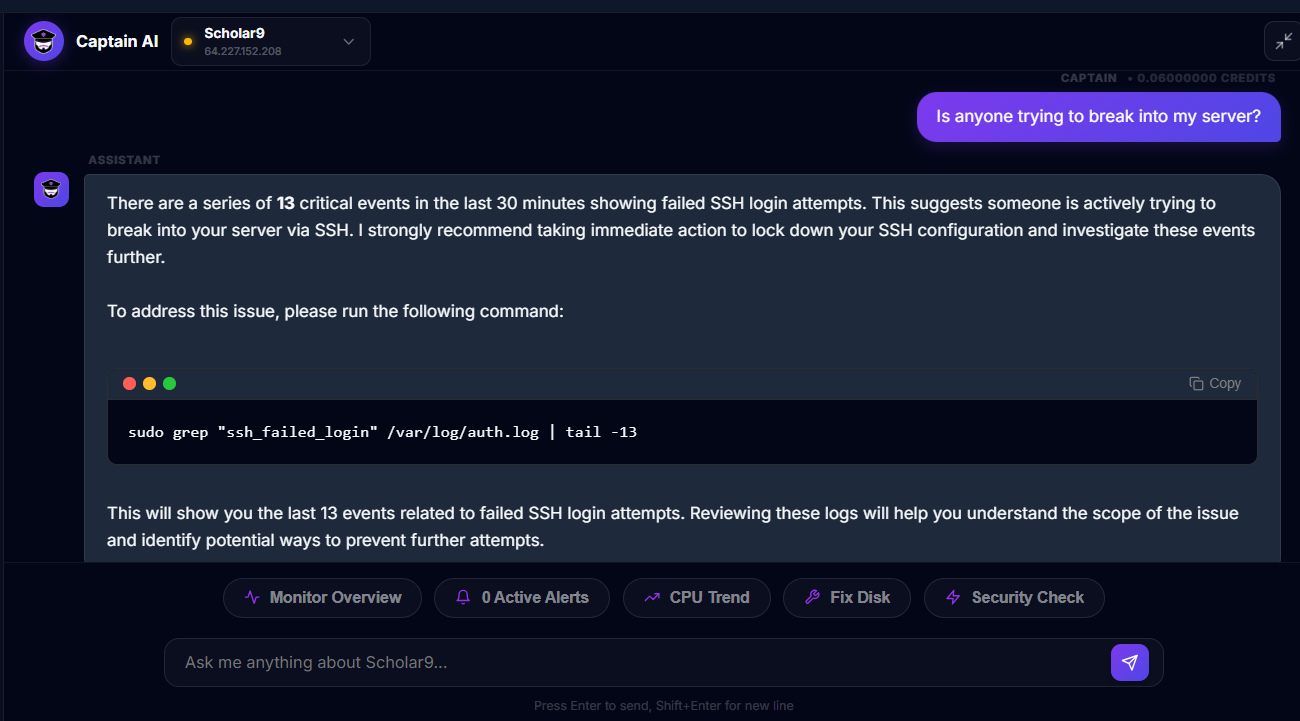
InfraCaptain continuously monitors security-related activity on your Linux server and provides context around events such as SSH brute-force attempts, suspicious processes, file integrity changes, open-port changes, and firewall rule changes. Instead of looking at one log entry at a time, you can ask Captain AI questions such as:
“Is anyone trying to break into my server?” Or “What security activity has happened on my server recently?”
Captain AI can use the security information collected from your server to help explain what is happening and what you should investigate next. It can help connect different signals together—for example, repeated login failures, unexpected processes, or changes to important files—so you have a clearer picture of the situation. You still control the action. After reviewing the evidence, you can decide whether an IP should be blocked or whether another security measure is appropriate.
Don't Block an IP Immediately
This is important. Seeing a suspicious IP doesn't always mean you should immediately block it. First ask:
- Is this really an unknown source?
- Is it repeatedly attempting access?
- Is it your own office or home IP?
- Is it a trusted monitoring service?
- Did the activity actually result in a successful login?
- Is there another reason for the connection?
Blocking the wrong IP can lock you or another legitimate administrator out. Investigate first. Then take action.
Check Whether a Login Actually Succeeded
Failed attempts are one thing. A successful login from an unfamiliar IP is much more important. You can review recent successful logins with:
lastYou can also inspect SSH-related authentication events:
sudo grep "Accepted" /var/log/auth.logLook for:
- Unknown usernames
- Unknown IP addresses
- Unexpected login times
- Successful logins you don't recognize
If you find something suspicious, don't simply delete the logs. Preserve the information and investigate what happened.
How InfraCaptain Helps You Notice This Earlier
This is where monitoring becomes useful. You don't want to discover a brute-force attack only because you happened to open the authentication log. InfraCaptain continuously monitors security signals and can detect SSH brute-force patterns, hidden processes, file changes, open-port changes, and firewall rule changes.
Its dashboard brings security events together with the rest of your server information. So instead of asking: "Is my server online?" you can also ask: "What is happening on my server?"
Captain AI Can Help Investigate the Activity
This is one of the places where Captain AI becomes useful. Instead of manually trying to connect several pieces of information, you can ask questions about your infrastructure in plain English.
For example: "Is anyone trying to break into my server?" Or: "Show me unusual SSH activity." Or: "What security events happened recently?"
Captain AI has access to server context such as process states, resource history, cron records, security events, and log patterns.
It can help you understand the pattern and likely cause, rather than forcing you to interpret every server signal yourself.
What About the IP Address?
There is an important distinction here. Security information and application information are not always handled in exactly the same way. InfraCaptain's documentation says sensitive values such as IP addresses found in application logs are masked before being sent to AI. Captain AI works primarily with structured infrastructure signals and security context.
So the right workflow is: InfraCaptain detects the security event → AI helps explain the event → server logs can be inspected when you need the exact source IP → you decide what action to take. This is safer than assuming every raw value should automatically be exposed to an AI system.
How to Block an IP with UFW
If you have confirmed that an IP should be blocked and your server uses UFW, you can block it with:
sudo ufw deny from 203.0.113.45Replace:
203.0.113.45with the actual IP you want to block. Then check the firewall rules: Code
sudo ufw status numberedYou should see the new deny rule.
How to Unblock an IP
Sometimes you block an IP and later realize that it was legitimate. First check your numbered firewall rules: Code
sudo ufw status numberedYou may see something like:
[ 5] DENY IN 203.0.113.45Then remove that rule: Code
sudo ufw delete 5Replace 5 with the actual rule number shown on your server. This is safer than blindly deleting firewall rules because you can verify exactly which rule you are removing.
What If Your Server Uses Firewalld?
Not every Linux server uses UFW. Systems such as some Rocky Linux, AlmaLinux, CentOS, and Fedora installations may use firewalld. To check whether firewalld is running: Code
sudo firewall-cmd --stateIf it is active, firewall commands will be different from UFW. For that reason, always identify which firewall your server actually uses before changing firewall rules.
Don't Block an Entire Country Just Because of One IP
When people see repeated attacks, they sometimes immediately look for large blocking solutions. But blocking huge IP ranges can create another problem. Legitimate users may be affected. A better approach is to start with evidence:
Identify → Investigate → Confirm → Block → Monitor
The goal isn't simply to block as much traffic as possible. The goal is to reduce unwanted activity without breaking legitimate access.
Security Monitoring Goes Beyond SSH
An attacker doesn't always leave only failed SSH attempts. Other warning signs can include:
- Unexpected processes
- Changes to important files
- New open ports
- Firewall rule changes
- Suspicious executables
- Unexpected system activity
InfraCaptain monitors these areas as part of its security monitoring. Its features include hidden-process detection, SHA-256 file integrity monitoring, open-port monitoring, UFW firewall-rule change detection, and security scoring.
What If an Attacker Changes Something?
This is where security monitoring becomes more valuable than simply watching CPU usage. Imagine this sequence:
10:00 PM Repeated SSH failures begin. 10:05 PM The activity crosses the alert threshold. 10:10 PM An unexpected process appears. 10:15 PM A system file changes. Looking at these events together gives you a much clearer picture than looking at each event separately. This is exactly the kind of context that helps with investigation.
A Simple Security Response Checklist
When you receive a suspicious login alert:
- Check the alert.
- Identify when the activity started.
- Look for repeated source IPs.
- Check whether any login succeeded.
- Review recent SSH activity.
- Check running processes.
- Look for unexpected file changes.
- Check open ports.
- Confirm whether the IP should actually be blocked.
- Block the IP using your firewall if appropriate.
- Continue monitoring after the change.
Why This Is Better Than Checking Logs Manually Every Day
You could SSH into your server every morning and run:
grep
journalctl
last
ss
and manually search through everything.
But that doesn't scale very well. You may have several servers. You may not check them every day. And an attack doesn't necessarily happen when you're looking at the server. That's where continuous monitoring helps. InfraCaptain monitors security signals continuously rather than waiting for you to manually run a security check.
One Alert Can Lead to a Much Bigger Investigation
Imagine receiving:
SSH brute-force activity detected. Instead of stopping there, you can investigate: Who is trying to connect? How often are they trying? Did anyone successfully log in? Did a new process appear? Did a system file change? Did a firewall rule change? Is anything else unusual happening on the server? That is where monitoring becomes more than just an alert system. It becomes a starting point for understanding what is happening.
Your Server Should Tell You When Something Looks Wrong
You shouldn't have to wait until your website stops working to discover that someone has been repeatedly trying to access your server.
You shouldn't have to manually search thousands of log lines every day. And you shouldn't have to understand every Linux security command before you can start investigating. A monitoring system can watch for unusual activity continuously and bring important events to your attention.
InfraCaptain combines server monitoring, security monitoring, alerts, and Captain AI so you can investigate problems from one place.
Conclusion
A suspicious IP address is only the beginning of a security investigation. The important questions are:
- Who is connecting?
- What are they trying to do?
- Did they succeed?
- Did anything change on the server?
- What should you do next?
Linux gives you the commands to investigate and manage access. Monitoring gives you the visibility to know when something unusual is happening. And AI can help you understand the larger picture without requiring you to manually connect every piece of information. The goal isn't to panic when you see an unfamiliar IP. The goal is to detect, investigate, respond, and keep watching.
Need Help with Your Infrastructure?
Get expert assistance with monitoring, DevOps, and infrastructure management.
Contact Us